




























































Table of contents
With remote and hybrid work here to stay, the home office has become one of today's most important workspaces. Working for hours on a small laptop screen not only hurts productivity but also takes a toll on your neck and eyes. Choosing the right monitor can eliminate most of these problems. In this guide, we cover every point to consider, from screen size and panel type to height adjustment and single-cable connectivity.
Resolution and screen size
Screen size and resolution form the basis of choosing a monitor. A 27-inch monitor is ideal for most home offices: wide enough, yet compact enough to fit on your desk. At this size, 1080p makes text look a little large, while 1440p delivers a sharp, comfortable-to-read image.
For people who work mostly with text, high pixel density reduces eye strain. Wide and curved screens appeal to those who use multiple windows, but they can be uncomfortable on shallow desks. Keep the screen about an arm's length away, with the top edge slightly below eye level. If you're thinking of using two monitors, choosing the same model ensures matching colors.
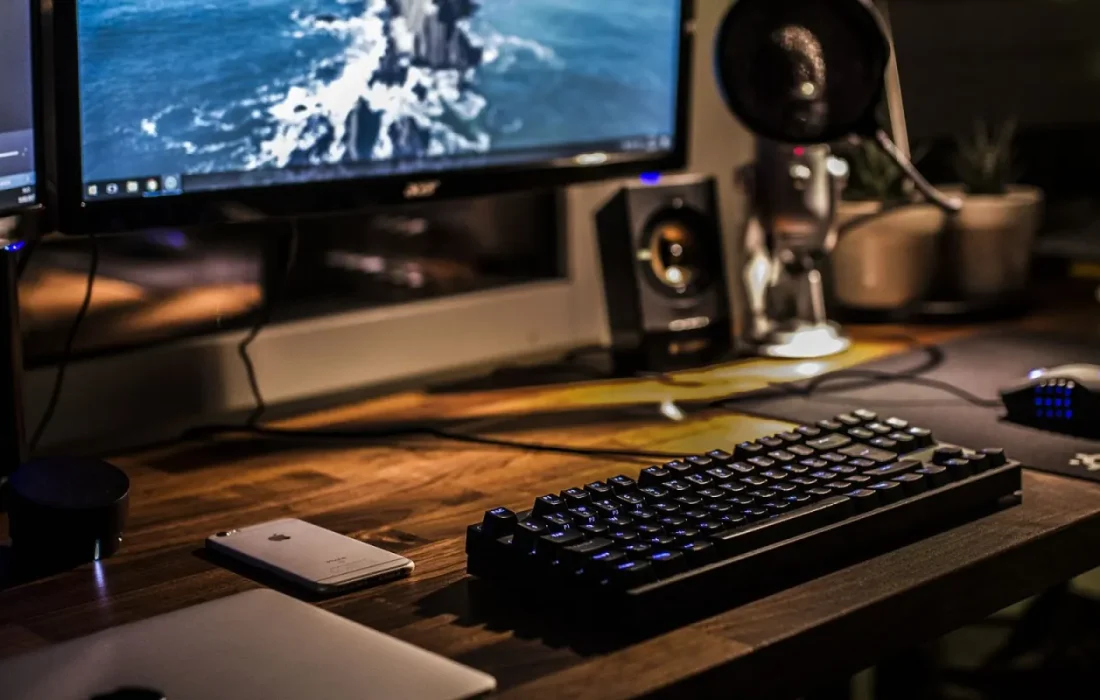
A good monitor is the smartest investment you can make in your home office.
Emily Carter
Panel types and eye health
Panel type determines image quality. High-contrast VA panels excel at dark colors but have limited viewing angles. IPS panels offer wide viewing angles and accurate color, making them better suited to photo and design work. OLED panels are vivid but carry a risk of burn-in with static content over long periods.
For eye health, choose models with flicker-free backlighting and a blue light filter. A matte finish reduces reflections from windows and lamps. Adjusting brightness to the ambient light significantly reduces eye strain. Looking away for twenty seconds every twenty minutes is also a simple but effective habit. It brings noticeable relief at the end of long workdays.
Ergonomics and connectivity
Ergonomics is the part that's often overlooked but directly affects daily comfort. A stand with height, tilt and swivel adjustment significantly reduces strain on the neck and shoulders. If the monitor lacks these adjustments, a separate monitor arm can be added to the budget. Remember that the top edge of the screen should be at eye level. This detail also reduces neck pain during long working hours.
| Topic | Guide |
|---|---|
| Highlights | laptop, comparison, how-to |
| Reading time | 9 minutes |
| Written by | Emily Carter |
Key takeaways
- A 27-inch screen at high resolution is a balanced choice for most home offices.
- Panel type and flicker-free backlighting matter for eye health.
- Height adjustment and single-cable connectivity boost everyday comfort.
For connectivity, models that provide video, data and charging over a single cable are a huge convenience for laptop users. A built-in hub lets you plug devices such as your keyboard and mouse into the monitor. Models with built-in speakers and a webcam declutter your desk. A good monitor is the smartest investment you can make in your home office; it pays off in both your health and your productivity.
What do you think about this post?

Leave a comment