





















































Table of contents
When switching phones, the biggest worry is losing the photos, messages and app data you've built up over the years. Fortunately, moving between the two major mobile operating systems is far easier than it used to be, thanks to official transfer tools. Our guide walks through every step in order, from backing up before you switch to transferring chat history in messaging apps. Forgetting to turn off the messaging service on your old phone can mean some messages never reach your new device. It is also worth knowing from the start that paid apps and subscriptions don't carry over between platforms.
Back up before you switch
The first step in switching is making a complete backup on your old phone. Check that your photos and videos are fully backed up to the cloud, that your contacts are synced with your account and that your calendar entries can be exported. If you're short on storage, temporarily upgrading to a higher plan eliminates the risk of losing anything. This precaution heads off most of the surprises that can come up during the switch.
Each messaging app has its own backup and restore method for moving chat history; look into this step in advance. Before turning off two-factor authentication apps on your old phone, move them to the new device or save the recovery codes. Banking apps may require extra verification when you change devices. Skipping these steps can leave you locked out of accounts later.
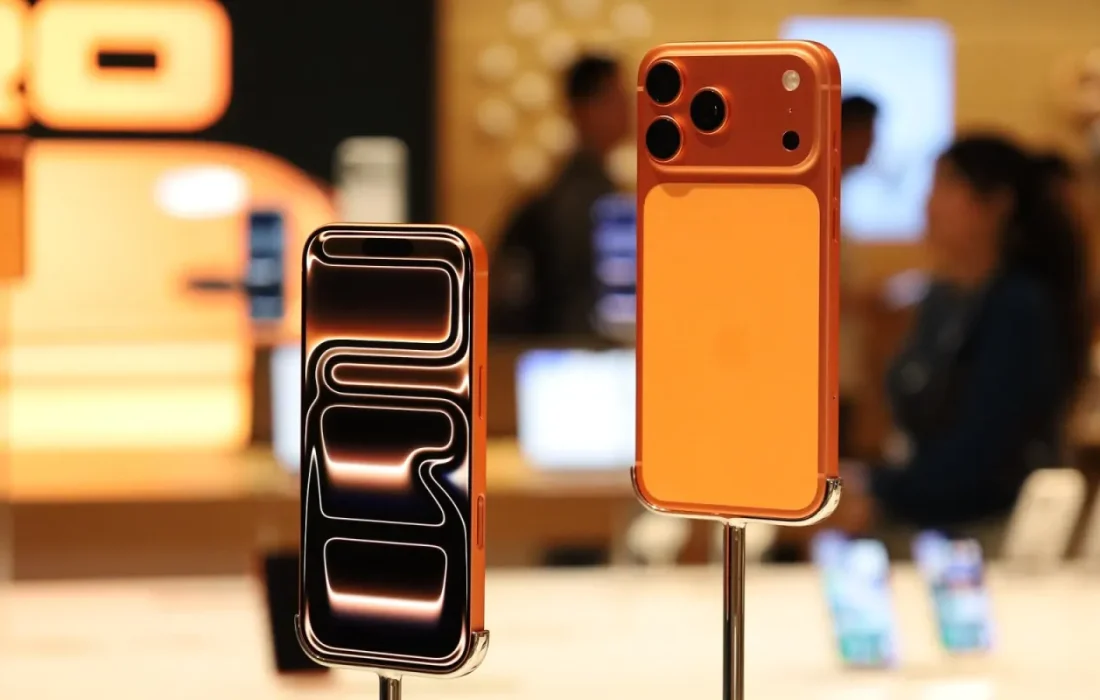
A switch that starts with a good backup is already half done.
Mark Ellison
Moving photos and messages
Official transfer tools move contacts, photos, calendars and messages in one go, over a cable or wirelessly. When you first turn on your new phone, choose the option to copy data from your old device on the setup screen; keeping both phones side by side, charging and on the same network speeds things up. With large archives, the transfer can take an hour or two. It's a good idea to keep the phones charging in the meantime.
Moving text messages may require a separate app, but most messages now arrive over the shared messaging standard. If you prefer, you can also back up photos directly to a computer instead of the cloud. Don't reset your old phone until you've confirmed the whole transfer is complete on the new device; wait at least a week. Once the transfer is done, randomly opening a few photos and chats to check them is a good habit.
Apps and subscriptions
Most apps are available on both platforms, and your data comes back when you sign in with your account. However, paid apps and in-game purchases don't transfer between platforms, so you may need to buy these apps again. Check which store you used for your subscriptions, because subscriptions that remain active in the old store will keep being billed. Preparing this list before the switch saves you from surprises later.
| Topic | Phones |
|---|---|
| Highlights | smartphone, how-to, operating system |
| Reading time | 8 minutes |
| Written by | Mark Ellison |
Key takeaways
- Check your photo, contact and message backups before switching.
- Official transfer tools move most of your data in one go.
- Paid apps and subscriptions don't carry over between platforms.
Forgetting to turn off the messaging service on your old phone can mean some messages never reach you on the new device. After turning it off, ask a friend to send you a test message within a few days. You'll need to re-pair accessories such as your smartwatch and earbuds. Once every step is done, reset the old phone and hand it on or recycle it.
What do you think about this post?

Leave a comment