

























How to Activate a License Key: A Step-by-Step Guide
How to activate the key you bought within minutes: copying, signing in and verifying.
Table of contents
As soon as your payment is confirmed, your key arrives in your email. But for users who don't know where to enter it, this moment can be confusing. Subscription codes are entered in the account dashboard, while lifetime licenses are entered in the app or system settings. Below we walk through both cases in order.
Copy the key correctly
When your order is confirmed, your key is in two places: in your email and on the My Licenses page in your account. Both show the same code; even if you delete the email, it stays in your archive. The most common mistake when copying a key is selecting the space before or after it. That space can cause the activation to be rejected. So double-clicking the code to select it, or using the copy button, is the safest method. Very long keys may wrap onto a new line; these are joined automatically when you paste. After copying the key, don't copy anything else before you reach the field where you will paste it; when new content lands on the clipboard the code is lost and you have to go back to the email.
If you have to type it by hand, watch out for look-alike characters: zero and the letter O, and one and a lowercase L, are often confused. If the key is on a single line, enter the hyphens too. If you still have trouble, try copy and paste again and check whether there is version information next to the code; the code for some products works only with the matching version, and this is noted on the product page. If you are still unsure, paste the key into a notepad first and check it by eye; then copy it from the same place and move it to the target field. This small extra step reveals an error right away.
Activation is not a technical skill; it is a matter of knowing the right menu.
Mark Ellison
Find the activation section in the app
Subscription codes are entered in the account dashboard. Go to the website of the relevant app or its in-app account menu, open the section labeled "Redeem Code," "Subscription Code" or "Upgrade Plan," paste the code and confirm. The term you chose starts at that moment; so if you use the code a week later, your subscription counts from that day. That is why codes you bought as gifts or as a backup can wait without expiring. Don't forget to check the end date in the dashboard after activation. Make sure your internet connection is stable during activation. If the connection drops midway, the process may look incomplete; in that case just refresh the page and enter the code again.
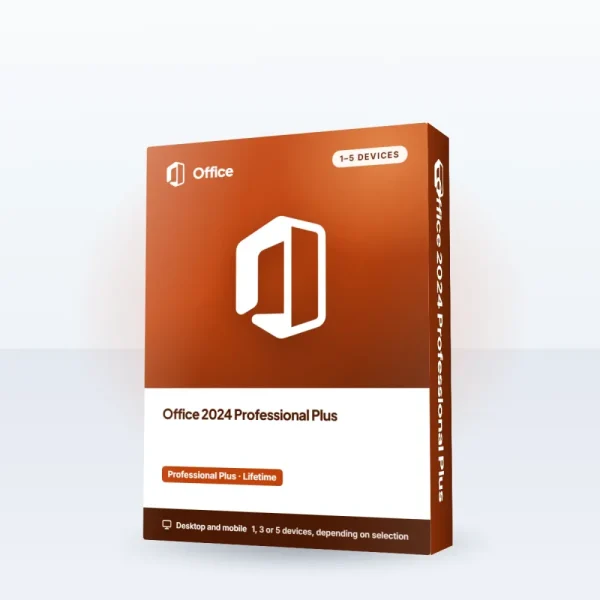
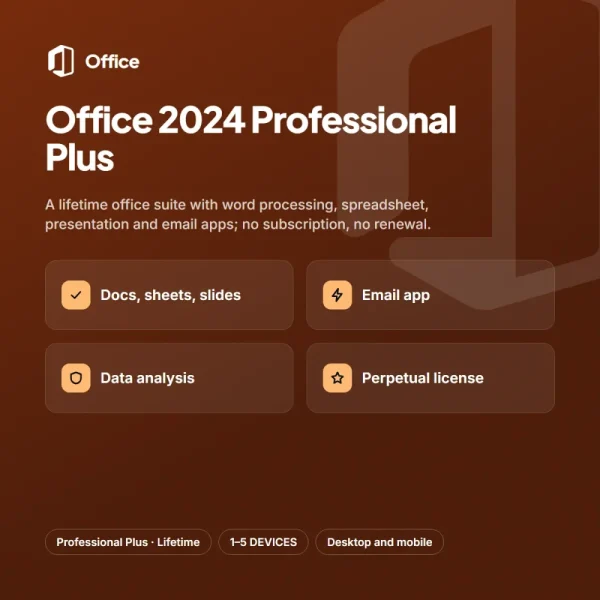
For lifetime licenses the order is a little different. On an operating system you go to the Activation section in Settings, and in office and PDF tools you go to the Enter License option in the Help menu. Once the key is entered, the product is tied to your device and works with no time limit. If you bought a multi-device pack, you don't enter the same key for every device; you enter as many separate codes as there are keys in that order item, and you should note which key is used on which device. If you accidentally entered a code into the wrong product, tell the support team right away. If it hasn't been used yet, we can exchange it, undo the process and set up the right product's code for you.
What to do if something goes wrong
If activation fails, don't panic; most errors come from simple causes. Check that your internet connection is on, that your date and time settings are correct and that you entered the code into the right product. If you use a VPN, turn it off briefly and try again; some server addresses can be blocked during verification. If you used the code on another account before, the system reports it as "already used." In that case note your order number and contact us. Incorrect date and time settings are also a common cause that blocks verification. Setting your device's clock to automatic and trying again often fixes the problem instantly.
| Topic | Licensing & Activation |
|---|---|
| Highlights | activation, operating system, e-Invoice |
| Reading time | 5 minutes |
| Written by | Mark Ellison |
Key takeaways
- Copy the code without spaces; this is the most common mistake.
- Subscription codes go in the account dashboard, lifetime keys in the app settings.
- If something goes wrong, write to support with your order number and the error text.
Our support team is available live every day from 9 AM to 11 PM. When you write, share your order number, the product name and the error text you see on screen; a screenshot speeds up the solution. In the very rare case that a key turns out to be invalid, we provide a new one or a refund right away. Remember, your code is saved on the My Licenses page and an invoice is issued for the order; so at every step you have a document and a guarantee in hand. Before contacting us, check the code's status on the My Licenses page; it shows when the code was delivered. This information speeds up the support process and cuts down on unnecessary back-and-forth.
What do you think about this post?

2 Comments
Really useful piece, thank you for putting it together.
I had never thought about this side of it. Looking forward to a follow-up.