

















































Gallery: How to Build a Productive Desk Setup
Desk setup ideas that improve focus through lighting, screen layout, keyboard and software organization.
Table of contents
Productivity is not just about software; it is also about the environment you work in. Good lighting, the right screen height and an organized desktop make it easier to focus. In this gallery we bring together desk setup ideas for different budgets and the software counterpart of each.
Desk and lighting setup
Light is the least noticed but most influential element of a desk setup. Move the desk to the side of the window, prevent reflections on the screen and add a warm-toned lamp to the desktop. If daylight is not enough, placing a soft light strip behind the screen protects your eyes from fatigue. In the first frames of the gallery you can see these setups in different rooms. Creating a short break corner next to the desk also boosts productivity. A small space for standing up, stretching, looking away from the window and drinking water noticeably extends your attention span during long work sessions.
Desk height and the chair also directly affect productivity. Your elbows should be at ninety degrees and your feet on the floor. A small footrest and a wrist rest make a difference during long sessions. For cable management, add a cable tray under the desk; visual simplicity brings mental simplicity. The budget-friendly frames show how to get the same effect with little spending. Color choice also affects your mental environment. Natural wood and neutral tones bring calm, while a single vivid accent color adds energy to the desk; avoiding overly colorful combinations makes it easier to focus.
A tidy desk, a tidy mind.
Ethan Brooks
Screen and hardware placement
Place the screen slightly below eye level, at arm's length. If you use two screens, put the main one directly in front of you and the second to the side. If you use a laptop, raising the screen with a stand and using an external keyboard reduces neck pain. The feel of the keyboard and mouse is worth setting aside some budget for, since you use them hundreds of times a day. If you use a wireless keyboard and mouse, make it a habit to check the battery level once a month. A battery that dies mid-work is a small snag that can interrupt your most productive hours.
Consider ambient noise when choosing headphones and a microphone. For someone who takes meetings, a noise-canceling microphone is enough, and for someone who works with text, comfortable headphones will do. If needed, when taking voice notes you can clean up the recording with an audio cleanup tool. The frames in the middle of the gallery show how this hardware is positioned in balance on the desk. Webcam height also makes a difference in video calls. Having the camera at eye level makes you look more professional and spares your neck from fatigue during long meetings.
Software and desktop organization
Desktop organization matters as much as hardware. On a clean system like Windows 11, use multiple desktops: one for communication, one for writing, one for design. Turn off notifications that stay on all the time, pin the apps you use daily to the taskbar and gather the rest in folders. Setting a file naming rule also saves a lot of time months later. Don't neglect a weekly desktop cleanup, either: setting aside the last five minutes on Fridays to sort files into folders lets you start Monday morning with a clean slate.
| Topic | Savings & Bundles |
|---|---|
| Highlights | desk setup, productivity, operating system |
| Reading time | 5 minutes |
| Written by | Ethan Brooks |
Key takeaways
- Light and screen height come first.
- Make focus easier with multiple desktops.
- Buy your software as a bundle and install it in one go.
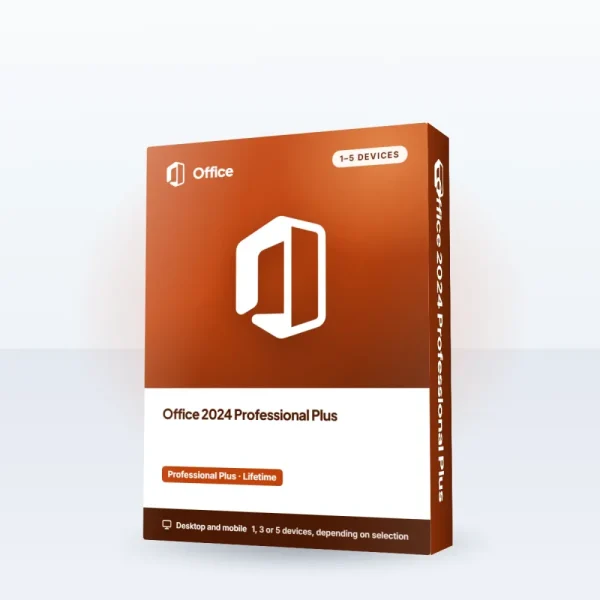
On the software side, bundled solutions make things easier. With the Windows 11 Pro + Office 2024 Bundle, the operating system and office suite are ready at the same time; you gather your ideas in a digital notebook, protect your passwords with a password manager and hand off routine tasks to an AI assistant. The last frames of the gallery show with examples how this software setup looks on screen. A backup routine matters as much as a software setup. Connect your important folders to an automatic cloud backup; knowing your work is safe in case of device failure or loss is a comfort.
What do you think about this post?

Leave a comment