


























































A productive desk: Choosing your monitor, keyboard and lighting
One monitor or two, mechanical or silent keyboard? We compared different desk setups with photos and pulled together our recommendations along with some software habits.
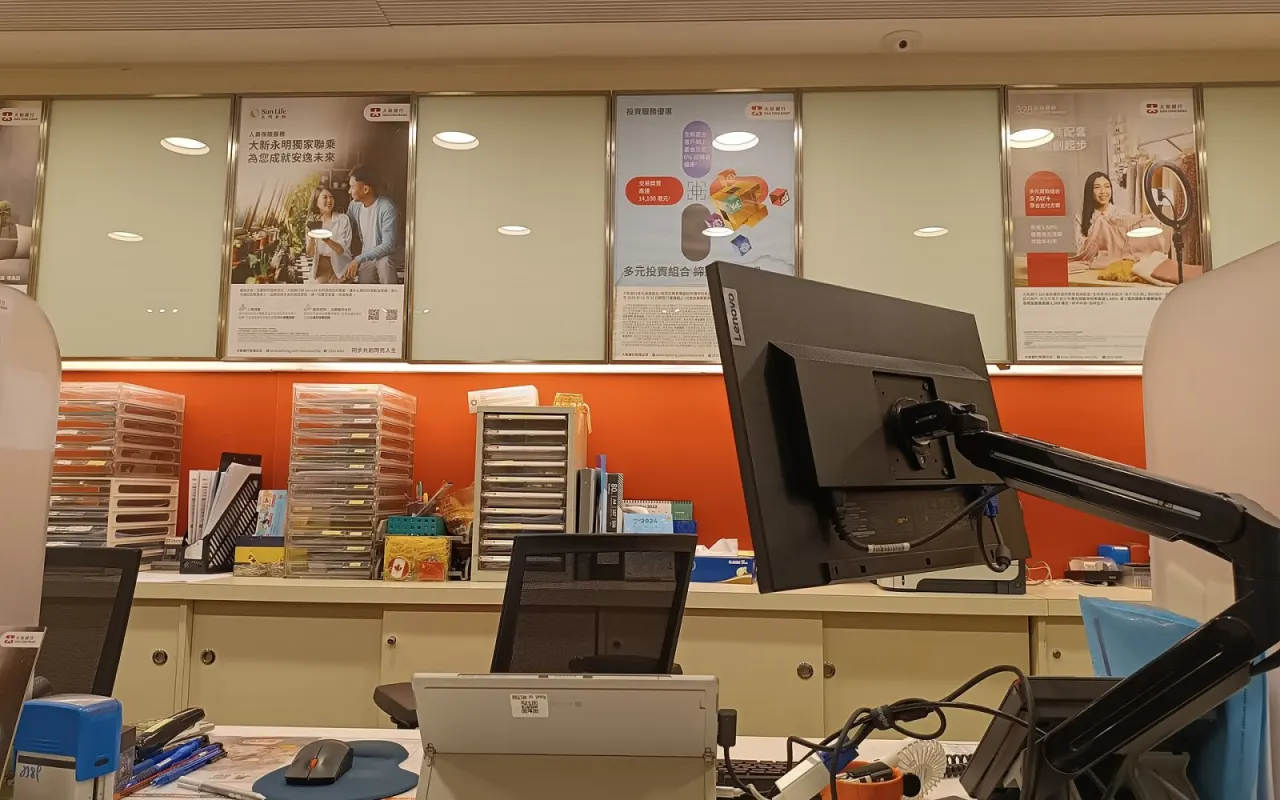
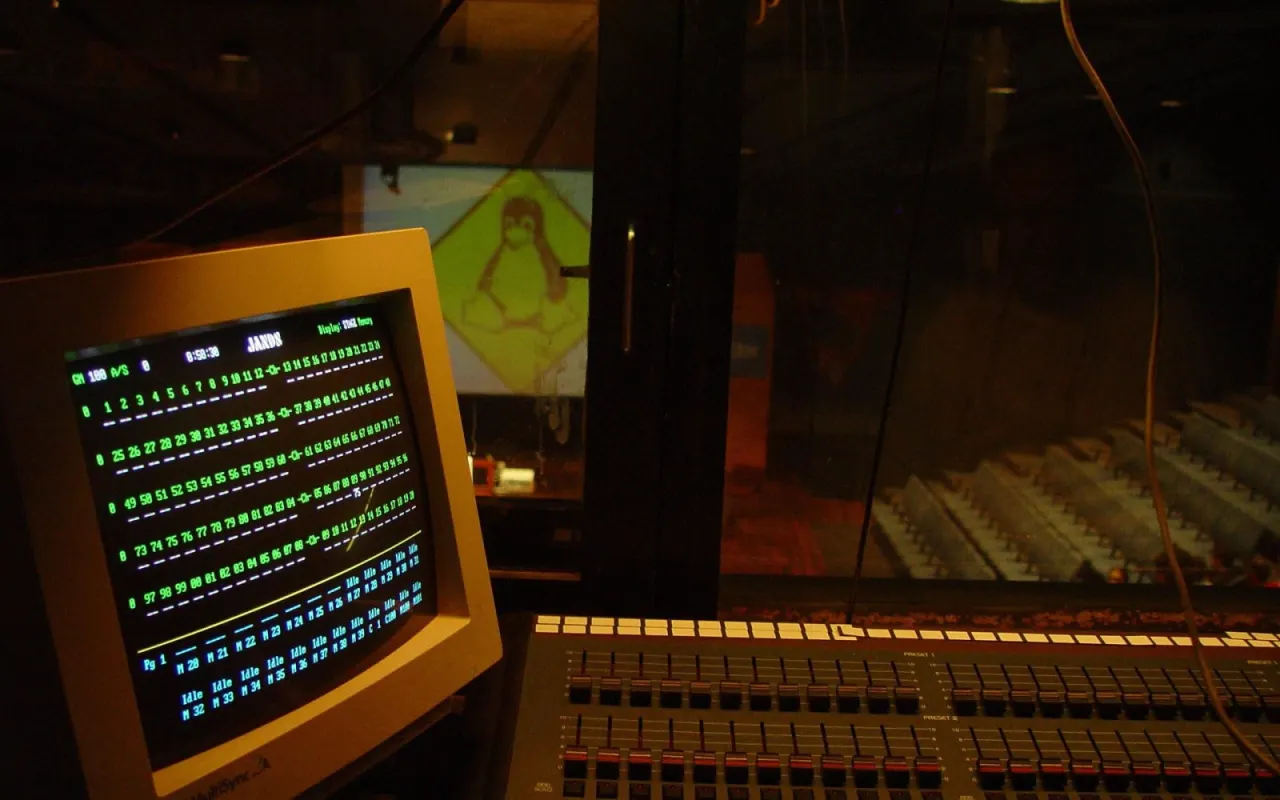
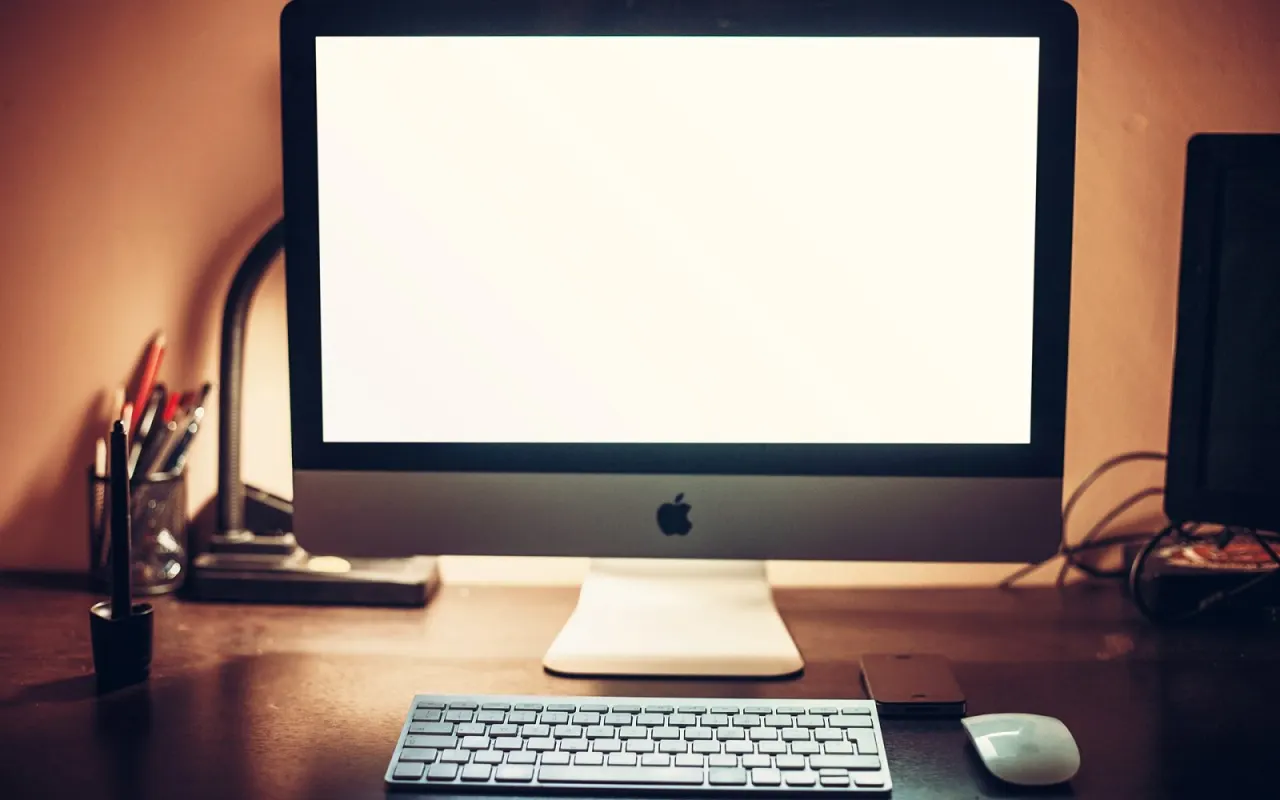
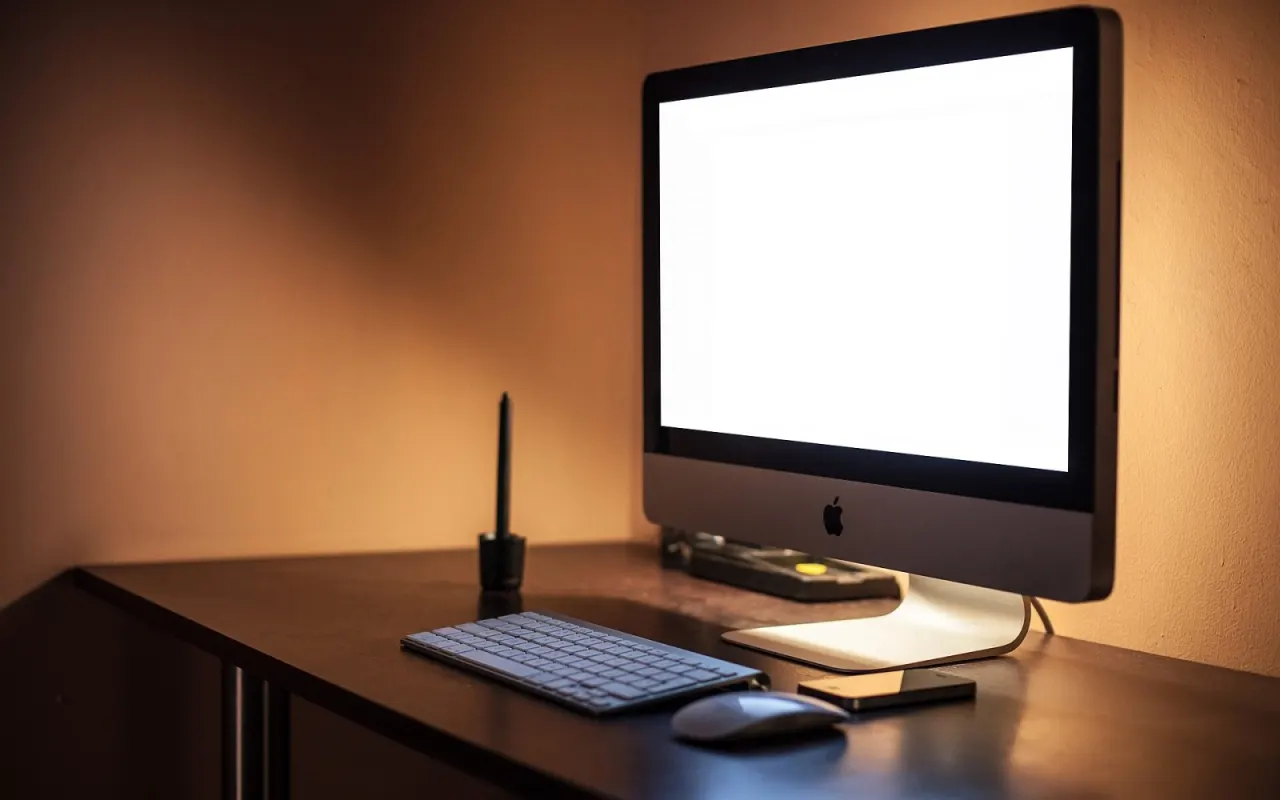
Table of contents
For anyone who spends more than eight hours a day at a computer, the desk is the most important part of the office. A monitor at the right height, a keyboard that doesn't strain your wrists and lighting that's easy on the eyes affect productivity at least as much as good software. In this gallery post, we share examples from our readers' and our team's desks and compare the advantages of different setups. We also touch on a few software habits that round out a good desk setup.
Number of monitors and placement
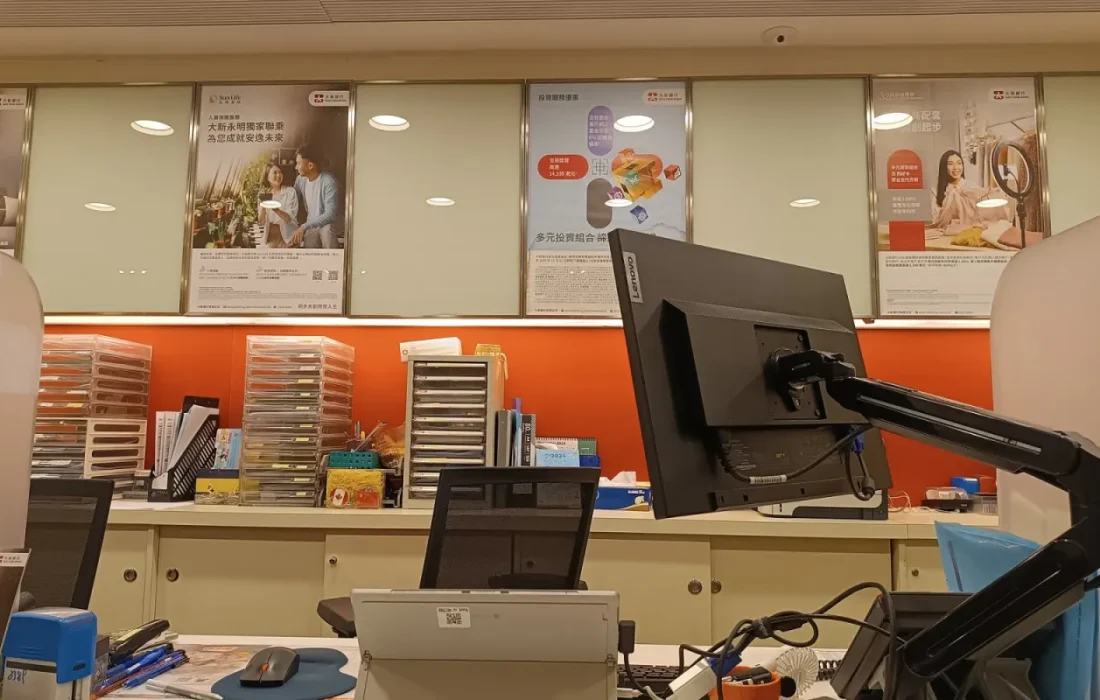
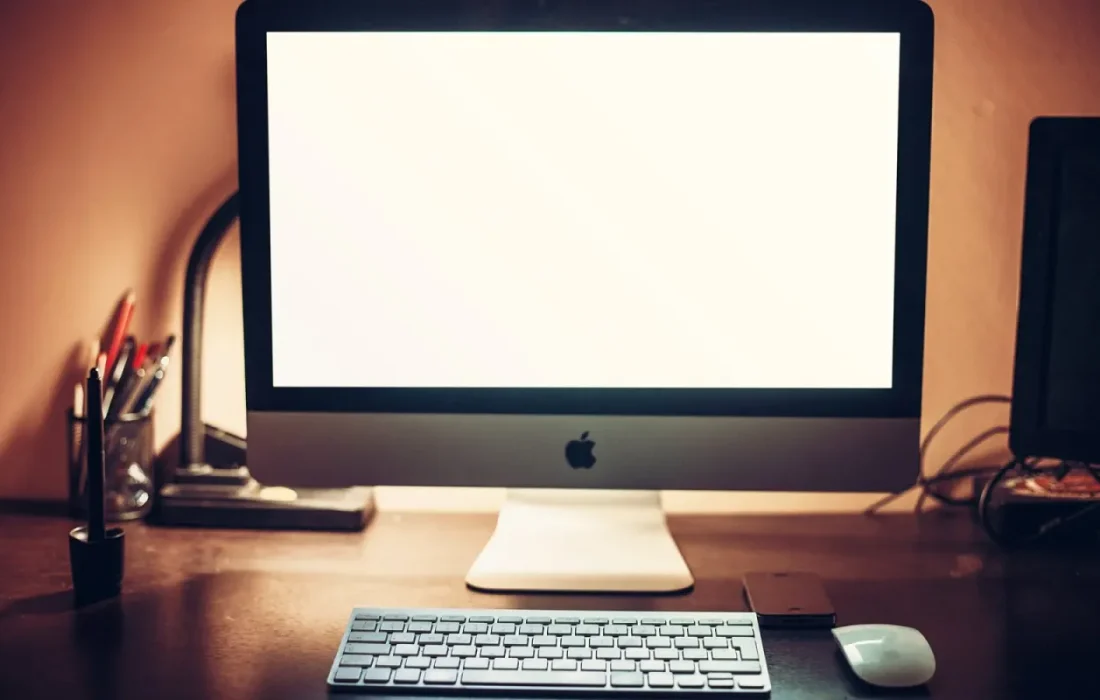
A dual-monitor setup noticeably boosts productivity, especially for people who work with several windows at once. With email and messaging on one screen and your main work file on the other, you don't have to keep switching between windows. But a second monitor isn't essential for every job; for someone who writes or focuses on a single app, one wide screen can be less distracting. You'll find examples of both approaches among the desks in the gallery. To find out which setup suits you, try keeping the second monitor switched off for a week and see what difference it makes.
The most important rule of monitor placement is that the top edge of your main screen should sit at eye level or slightly below. If the screen is too low, your neck tilts forward; too high, and your shoulders tense up. The distance between the screen and your eyes should be roughly an arm's length. With two monitors, place the main one directly in front of you and the second at a slight angle beside it. Thanks to the multitasking layouts in Zenit OS 12, you can snap windows into a screen grid quickly and bring back the same layout every morning with a single shortcut. For laptop users, a simple stand and an external keyboard deliver the same ergonomics at low cost.
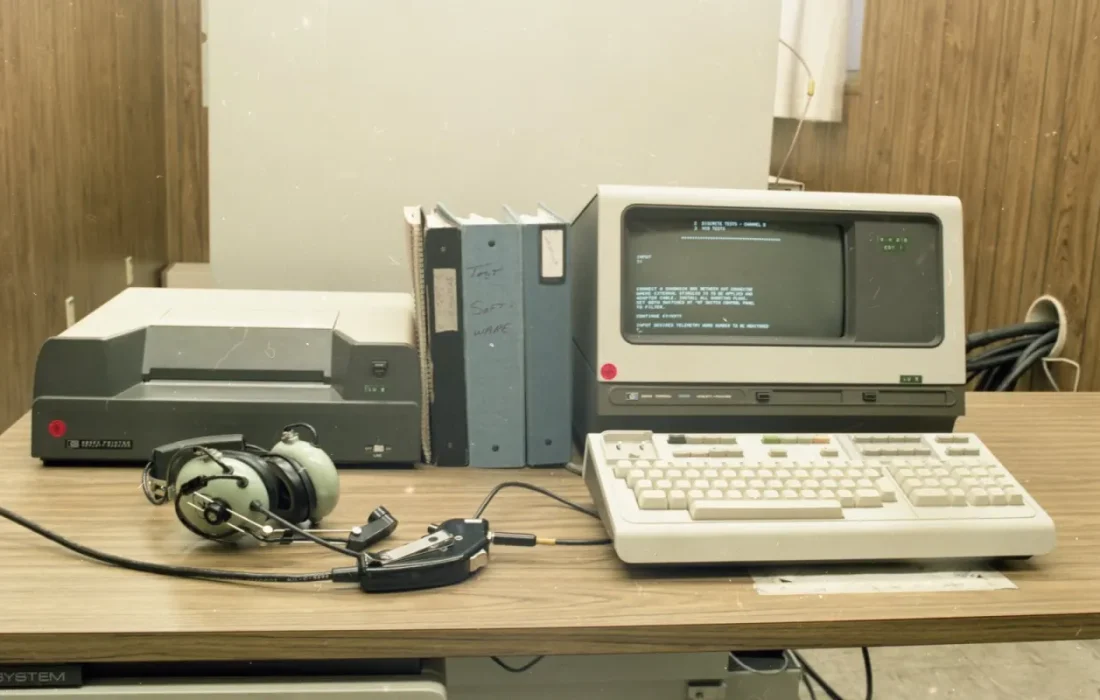
An ergonomic desk is the first productivity tool, even before software.
Sophie Laurent
Keyboard, mouse and ergonomics
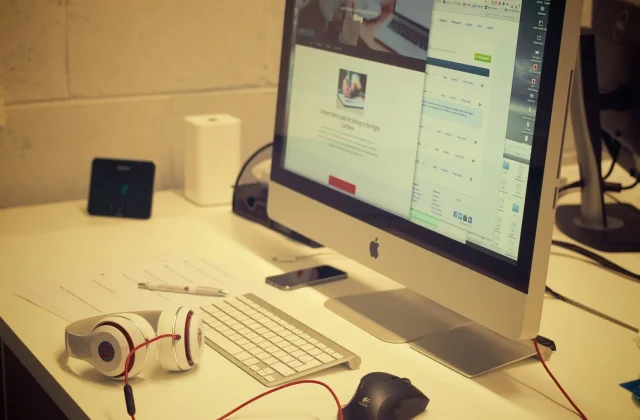
Choosing a keyboard is a personal preference, but a few criteria apply to everyone. Keys that are too stiff tire your fingers, while keys that are too soft lead to more mistyped strokes. Mechanical keyboards offer crisp feedback and last a long time, but they can be distractingly loud in shared offices. Quiet membrane or low-profile keyboards are a better fit there. Placing a soft wrist rest in front of the keyboard to keep your wrists straight makes a real difference during long typing sessions.
When it comes to the mouse, choosing a model that fits the size of your hand is the easiest way to prevent wrist pain. For people working on designs or spreadsheets all day, vertical mice keep the wrist at a more natural angle. Desk height is another important part of ergonomics: when seated, your elbows should rest on the desk at a ninety-degree angle and your feet should be flat on the floor. Height-adjustable desks let you switch between sitting and standing throughout the day, and they were one of the most praised setups in our gallery.
Lighting, cable management and software habits
The goal of lighting is to reduce the brightness difference between the screen and its surroundings. Staring at a bright screen in a dark room tires your eyes quickly. Positioning the desk perpendicular to the window keeps daylight from reflecting off the screen. In the evening, a soft backlight behind the monitor or a monitor light bar helps your eyes adjust. Cable management is an overlooked detail that makes a desk feel much more open; a cable tray mounted under the desk hides all the clutter. And once cables are labeled, you never have to trace which one goes where when swapping a device.
| Topic | Comparisons |
|---|---|
| Highlights | productivity, design, operating system |
| Reading time | 5 minutes |
| Written by | Sophie Laurent |
Key takeaways
- Place the top edge of your main screen at eye level, an arm's length away.
- Choose a keyboard that suits your space and keep your wrists straight with a rest.
- Position the desk perpendicular to the window to avoid screen glare.
Digital order matters just as much as physical order. Keeping a tidy folder structure instead of filling your desktop with files lets you find what you need in seconds. Limiting notifications during working hours improves focus. A regular backup habit turns a hardware failure at your desk into a minor setback. Finally, keeping the licenses of the software you use up to date stops your workflow from being interrupted by an unexpected warning window — it may seem like a small detail, but it makes a difference by the end of the day. After setting up your new desk, stay open to small adjustments for a few weeks.

Leave a comment