































































Table of contents
It may seem inevitable that a computer a few years old will slow down, but more often than not the problem isn't the hardware; it's the unnecessary software that piles up over the years. Disabling programs that launch automatically at startup, clearing out junk files and updating drivers can deliver a noticeable speed boost. For a more lasting fix, replacing a traditional hard drive with an SSD and adding more memory stand out as affordable and highly effective upgrades.
Cleaning up startup programs
The first thing to do is check which programs launch automatically when the computer starts. The Startup tab in Task Manager shows each program's startup impact. Disable high-impact programs you don't need. This often cuts boot time in half and reduces memory use in the background. Reviewing the startup list every few months is a good habit.
Next, uninstall apps you don't use and clear out temporary files. The disk cleanup tool can free up several gigabytes. Remove unused browser extensions; every extension eats up memory. Update your drivers and operating system, since current versions include performance improvements. All of these steps take less than half an hour, and you don't need to buy any extra software to do them.
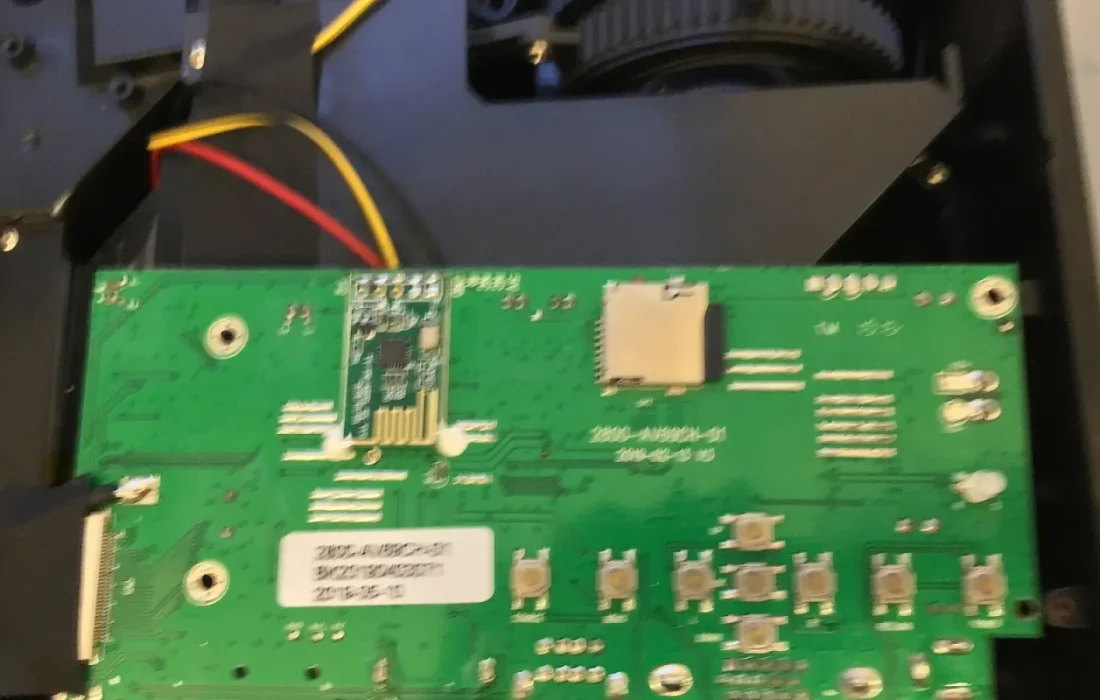
An SSD upgrade can give an old computer a new lease on life.
Emily Carter
SSD and memory upgrades
When it comes to hardware upgrades, the single most effective change is replacing a traditional hard drive with a solid-state drive, or SSD. Boot, app launch and file copy speeds increase dramatically. Many old computers, laptops and desktops alike, become smooth again as a result. What's more, the upgrade can be done in half an hour on most models.
The second effective upgrade is memory. Taking a computer from 4 GB to 8 GB makes a noticeable difference when using multiple tabs and programs. Check that the memory type and maximum capacity are compatible with your computer. On laptops, upgrading isn't always possible, so check your model's service manual. Don't forget to shut down and unplug your computer before upgrading.
When is a clean install necessary?
A clean install, meaning reinstalling the operating system from scratch, completely wipes out software leftovers that have built up over the years. Consider it a last resort when other methods aren't enough. First, back up all your files and note down your license details. Installation takes two to three hours, including updates. Copying your important documents to an external drive or a cloud service can be a lifesaver during this process.
| Topic | Guide |
|---|---|
| Highlights | operating system, laptop, how-to |
| Reading time | 7 minutes |
| Written by | Emily Carter |
Key takeaways
- Cleaning up startup programs and unnecessary apps is the first step.
- SSD and memory upgrades are the most effective hardware changes.
- A clean install is the last resort when other fixes aren't enough.
After a clean install, only install the programs you need. Keep your security software up to date, and clean the dust and dirt out of the computer once a year; clogged fans cause overheating and slowdowns. Back up regularly. An SSD upgrade can give an old computer a new lease on life; don't forget to save our checklist at the end of this article.
What do you think about this post?

Leave a comment